> For the complete documentation index, see [llms.txt](https://docs.geoprismregistry.com/llms.txt). Markdown versions of documentation pages are available by appending `.md` to page URLs; this page is available as [Markdown](https://docs.geoprismregistry.com/version/v2.0.0/external-system-integration/synchronize-an-external-system/fhir-synchronization.md).
# FHIR Synchronization
{% hint style="info" %}
A registered [FHIR external system](/version/v2.0.0/external-system-integration/register-an-external-system/fhir-external-system.md) must exist in Geoprism Registry.
{% endhint %}
A FHIR synchronization either sends data to a FHIR server (**Export**) or pulls data from one (**Import**). One synchronization can't do both, so create a separate configuration for each direction.
## Sending data to a FHIR server
1. Go to the **Settings** page. In the **External System Synchronizations** section, click **Register Synchronization**.
2. On the **Synchronization Configurations** page, click **Create**.
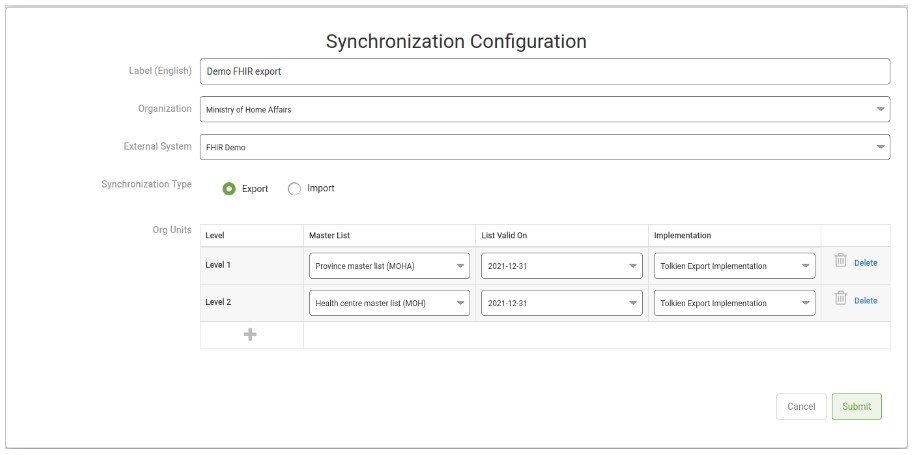
3. Fill out the **Synchronization Configuration** form, selecting **Export** as the **Synchronization Type**:
| Field | Description | Required |
| -------------------- | -------------------------------------------------------------------------------------------------------------------------------------------------------------------------------------------------------------------------------------------------------------------------------------------------------------------------------------------------------------------------------------------------------------------------------------------------------------------------------------------------------------------------------------------------------------------------------------------------------------------------------------------------------------------------------------------------------------------------- | -------- |
| Label | The label of the synchronization configuration. | Required |
| Organization | The organization the configuration is available to. It can't be changed later. | Required |
| External System | The registered FHIR external system to send data to. It can't be changed later. | Required |
| Synchronization Type | **Export** | Required |
| Levels |
The data to send, one level at a time. For each level, choose:
Click the plus icon (Add new level) to add another level, or Delete to remove one. This section is labelled Org Units in the current version.
| Required |
4. Click **Submit**.
## Pulling data from a FHIR server
{% hint style="danger" %}
Pulling data from a FHIR server requires a custom implementation, installed on your Geoprism Registry instance, that defines how the data is brought in. Contact your System Administrator for more information. System Administrators can see [FHIR custom implementation](/version/v2.0.0/deployment-and-setup/fhir-custom-implementation.md) for how to set one up.
{% endhint %}
1. Go to the **Settings** page. In the **External System Synchronizations** section, click **Register Synchronization**.
2. On the **Synchronization Configurations** page, click **Create**.
3. Fill out the form, selecting **Import** as the **Synchronization Type**:
| Field | Description | Required |
| -------------------- | --------------------------------------------------------------------------------------- | -------- |
| Label | The label of the synchronization configuration. | Required |
| Organization | The organization the configuration is available to. It can't be changed later. | Required |
| External System | The registered FHIR external system to pull data from. It can't be changed later. | Required |
| Synchronization Type | **Import** | Required |
| Implementation | The custom implementation that defines how FHIR data is brought into Geoprism Registry. | Required |
4. Click **Submit**.
## Running a synchronization
1. On the **Synchronization Configurations** page, click **View** next to the FHIR configuration.
2. Click **Run now** to start a synchronization job. Its progress and any errors appear under **Jobs**.
For an export, you can also click **Generate Bundle** to download a JSON bundle of the data that would be sent.