> For the complete documentation index, see [llms.txt](https://docs.geoprismregistry.com/llms.txt). Markdown versions of documentation pages are available by appending `.md` to page URLs; this page is available as [Markdown](https://docs.geoprismregistry.com/version/v2.0.0/explore/lists-and-spatial-data/managing-versions-of-a-set.md).
# Managing Versions of a Set
{% hint style="info" %}
Registry Administrators and Registry Maintainers can manage versions of a set created for the Geo-Object Types under the curation mandate of their organization.
{% endhint %}
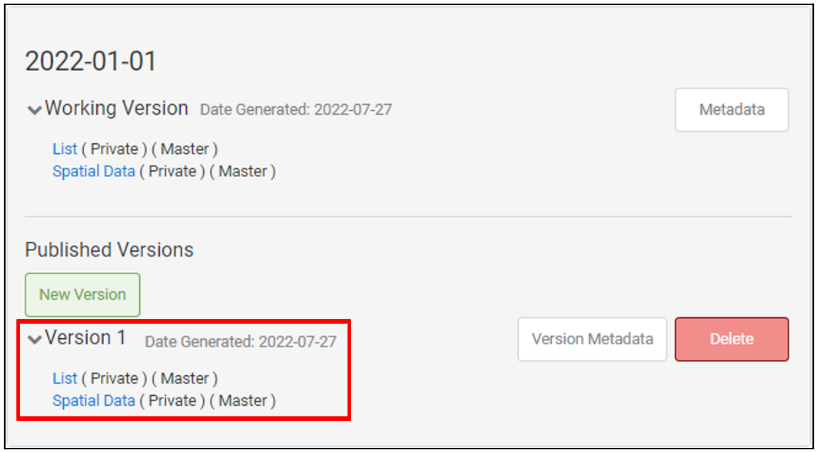
Each date or period of a set has:
* One **working version**, the live copy of the data. It's created automatically, can be edited and refreshed, and can't be deleted.
* Any number of **published versions**, which are snapshots of the working version. They can't be edited, but they can be explored and exported.
## Publishing a version
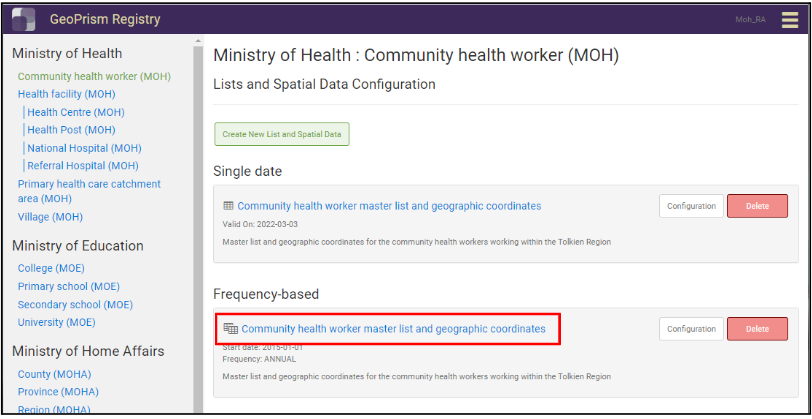
1. Navigate to the **Lists and Spatial Data** page from the sidebar. On the left, Geo-Object Types are listed under the organization that manages them. Click the Geo-Object Type, then click the title of the set.
2. The set shows a panel for each date or period. In the panel you want, click **Publish New Version**.
3. The **Metadata** window opens, with a **List** tab and a **Spatial Data** tab. The fields are copied from the working version. Review them, and set **Is Master**, **Visibility** and **Label** for each tab. New versions start as **Private** and non-master. See [Creating a Set](/version/v2.0.0/explore/lists-and-spatial-data/creating-a-set.md) for the other fields.
4. Click **Submit**. The new version appears under **Published Versions**.
When the working version changes, publish another version to capture the changes. If a panel has more than two versions, click **See previous versions** to show the older ones.
## Editing version metadata
Click **Metadata** next to the working version, or **Version Metadata** next to a published version. Edit the fields and click **Submit**.
## Deleting a published version
Click **Delete** next to the published version and confirm. Working versions can't be deleted.
## Adding periods to a frequency-based set
For a frequency-based set, click **Update List Periods** at the top of the set to add entries for new periods.
## Changing the set's configuration
Click **Configuration** at the top of the set to view its settings. The type of set, code and filters can't be changed after the set is created.