> For the complete documentation index, see [llms.txt](https://docs.geoprismregistry.com/llms.txt). Markdown versions of documentation pages are available by appending `.md` to page URLs; this page is available as [Markdown](https://docs.geoprismregistry.com/version/v2.0.0/explore/lists-and-spatial-data/exporting-lists-and-spatial-data.md).

# Exporting Lists and Spatial Data

{% hint style="info" %}
Registry Administrators, Registry Maintainers and Registry Contributors can export the lists and spatial data for the Geo-Object Types in their organization, and for lists and spatial data from other organizations that are **Public**.
{% endhint %}

You can export a list as a spreadsheet, or its spatial data as a shapefile.

1. Navigate to the **Lists and Spatial Data** page from the sidebar. On the left, click the Geo-Object Type under its organization, then click the title of the set.

   <figure><img src="https://3732932512-files.gitbook.io/~/files/v0/b/gitbook-x-prod.appspot.com/o/spaces%2F9giVyCrmTxAs33YrSRbJ%2Fuploads%2FjZfrqKK2wQK8HGi70hTT%2Fimage.png?alt=media&amp;token=3a4e2a6e-1c18-4eb8-8041-d15a0f7c4a5e" alt=""><figcaption></figcaption></figure>
2. In the date or period you want, open the **List** of the working version or a published version.

   <figure><img src="https://3732932512-files.gitbook.io/~/files/v0/b/gitbook-x-prod.appspot.com/o/spaces%2F9giVyCrmTxAs33YrSRbJ%2Fuploads%2Fkq8mqEpoSlwtjEcEIW5i%2Fimage.png?alt=media&amp;token=33795a2a-e8ab-42bb-9927-4a9a0cef7031" alt=""><figcaption></figcaption></figure>
3. Optionally, filter the list. Only the rows that match your filters are exported, and the button changes to **Export filtered list**. Invalid Geo-Objects are only included if **Also Show Invalid Geo-Objects** is selected.
4. Click **Export**.

   <figure><img src="https://3732932512-files.gitbook.io/~/files/v0/b/gitbook-x-prod.appspot.com/o/spaces%2F9giVyCrmTxAs33YrSRbJ%2Fuploads%2FP73oBQKCjDQPnDClucki%2Fimage.png?alt=media&amp;token=a2e64848-3fd1-4ef9-b12c-82fe4a4850d7" alt=""><figcaption></figcaption></figure>
5. In the **Export** window, choose **List (spreadsheet)** or **Spatial data (shapefile)**. For a Geo-Object Type with mixed geometries, also choose the **Geometry Type** to export. Then click **Submit**.

   <figure><img src="https://lh3.googleusercontent.com/tX344nIeXFt4DF78ZaDvxdqIFhUbB-A862QfwBWdXGl_f1vZhzjoiYFX3mwUe_wBS6oKUGfkC3Zeuirz2cFb2fnvpcPRTOrmf8BFwZFhkwFGzSEPoIMtSDf2xNLoeK-JUxdHgBEdGQ9JoOte828GyQPUu_4C8bc2sSCh68K7LrhD3JcEGnwApMmSxA" alt=""><figcaption></figcaption></figure>
6. The file downloads to your computer.

## What the files contain

**List (spreadsheet):** an XLSX file with three worksheets:

1. The list of Geo-Objects, as it appears in Geoprism Registry.

   <figure><img src="https://lh6.googleusercontent.com/ozu5nxtx3EbnCntc8uNt6qQt0zcDnc-fibziRoGPUMS7sB0-B-QIgHHJjJKEfuZsqsciZw53y6HNM7GpVivEXo3GO7WJKD1DhJ2adzT50I_t6I1reTBXePNH0oF6HNFXMY2MYcELJRwj40FWBDOxtTLaWWZjXHkzurbgt9B-cI_NyduWS5Gub3SJqQ" alt=""><figcaption></figcaption></figure>
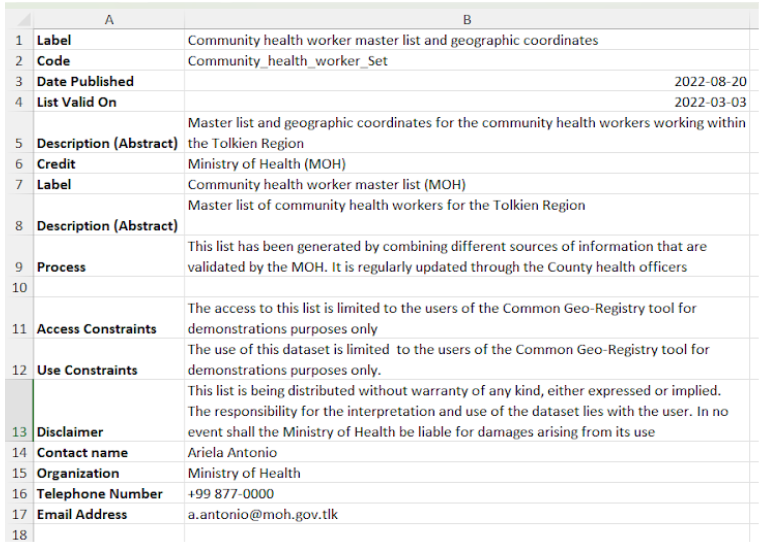
2. **Metadata**, the list's metadata.

   <figure><img src="https://3732932512-files.gitbook.io/~/files/v0/b/gitbook-x-prod.appspot.com/o/spaces%2F9giVyCrmTxAs33YrSRbJ%2Fuploads%2FeNBVFpFW2KMlLjorGpeB%2Fimage.png?alt=media&amp;token=b7001c0f-c539-4705-a10c-2cf81e7d1560" alt=""><figcaption></figcaption></figure>
3. **Data Dictionary**, which describes each column.

   <figure><img src="https://3732932512-files.gitbook.io/~/files/v0/b/gitbook-x-prod.appspot.com/o/spaces%2F9giVyCrmTxAs33YrSRbJ%2Fuploads%2FOT7MqVPj3lrCI4NORGZs%2Fimage.png?alt=media&amp;token=52b44b44-ca81-483c-bacf-154fe2405272" alt=""><figcaption></figcaption></figure>

For a **Private** list, people outside the organization only get the code and label columns.

**Spatial data (shapefile):** a ZIP file containing the files that make up the shapefile, and a metadata spreadsheet with **Metadata** and **Data Dictionary** worksheets built from the spatial data's metadata. Open the shapefile in your GIS software. Shapefile field names are shortened because of the format's length limit, so use the **Data Dictionary** to see what each field is.

<figure><img src="https://lh5.googleusercontent.com/cZW_eFsbbB8BNproJmGO6gXqk-OIlCJwMwsGHtZeSBJDATLtadlMxXS4B9THyl82GSl9gtY9y7bM46ztHV79hOFBi9VyNUc-GevXadLo7sZ2hmcVtKkEwf0MMcTiaZVdW3w8pkl7sUlPXB6ZGJXWwvNdryhd63GurYXrUbGTpWI52XvViZBoHxwtXg" alt=""><figcaption></figcaption></figure>