> For the complete documentation index, see [llms.txt](https://docs.geoprismregistry.com/llms.txt). Markdown versions of documentation pages are available by appending `.md` to page URLs; this page is available as [Markdown](https://docs.geoprismregistry.com/version/v2.0.0/explore/lists-and-spatial-data/editing-lists-and-spatial-data.md).
# Editing Lists and Spatial Data
{% hint style="info" %}
The System Administrator, Registry Administrators and Registry Maintainers can directly edit the lists and spatial data of the Geo-Object Types under the curation mandate of their organization. Registry Contributors can suggest edits, which are submitted as change requests.
{% endhint %}
You add and edit Geo-Objects from the working version of a list. The editing itself happens in the [Explorer](/version/v2.0.0/explore/explorer.md).
## Adding a new Geo-Object
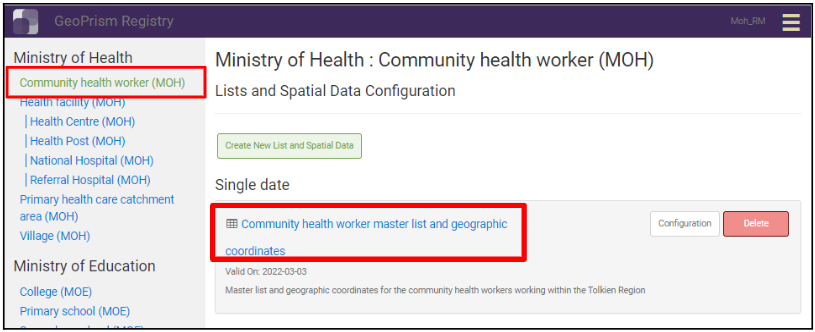
1. Navigate to the **Lists and Spatial Data** page from the sidebar. On the left, click the Geo-Object Type under its organization, then click the title of the set.
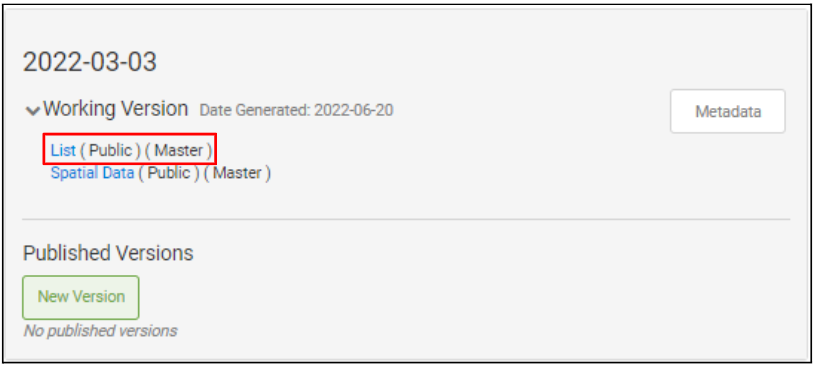
2. In the date or period you want, open the **List** of the working version.
3. Click **Add Geo-Object**. For a group, choose which Geo-Object Type in the group to add.
4. The Explorer opens with a new Geo-Object ready to fill in. See [Adding a Geo-Object](/version/v2.0.0/explore/explorer/adding-a-geo-object.md).
## Editing an existing Geo-Object
1. Open the **List** of the working version, as above.
2. Find the Geo-Object, using the filters if needed, and click the eye icon at the start of its row.
3. The Explorer opens with the Geo-Object selected. See [Editing a Geo-Object](/version/v2.0.0/explore/explorer/editing-a-geo-object.md).
After you edit Geo-Objects, click **Refresh** in the working version to update the list.