> For the complete documentation index, see [llms.txt](https://docs.geoprismregistry.com/llms.txt). Markdown versions of documentation pages are available by appending `.md` to page URLs; this page is available as [Markdown](https://docs.geoprismregistry.com/version/v2.0.0/explore/explorer/editing-a-geo-object.md).
# Editing a Geo-Object
{% hint style="info" %}
The System Administrator, Registry Administrators and Registry Maintainers can edit Geo-Objects directly. Registry Contributors' edits are submitted as change requests.
{% endhint %}
1. Select the Geo-Object and click **Edit** in the Attribute Panel.
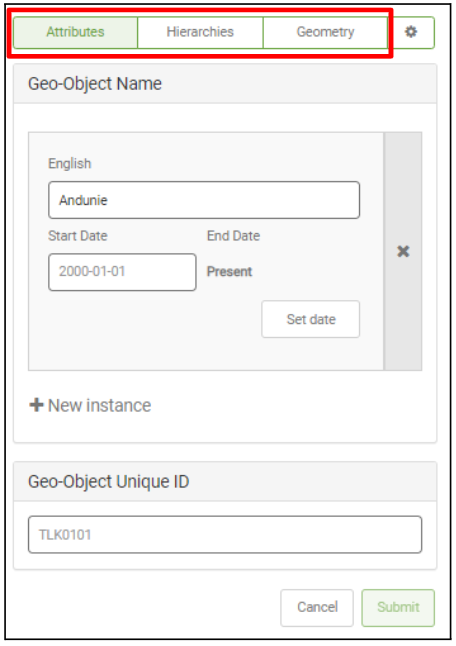
2. Click the tab with the information you want to change: **Attributes**, **Hierarchies**, **Geometry** or the gear tab.
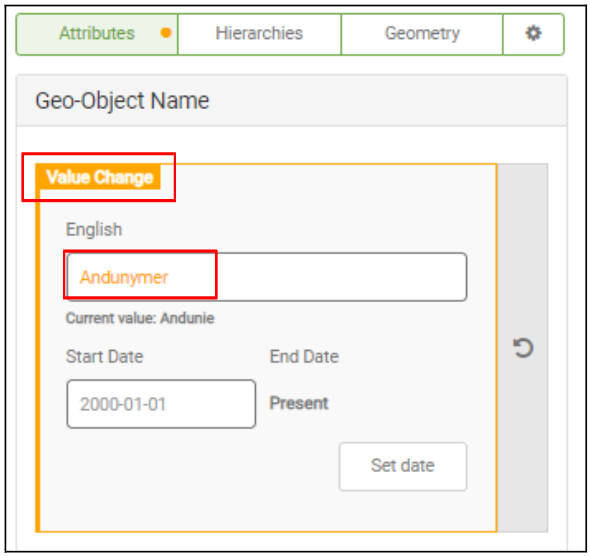
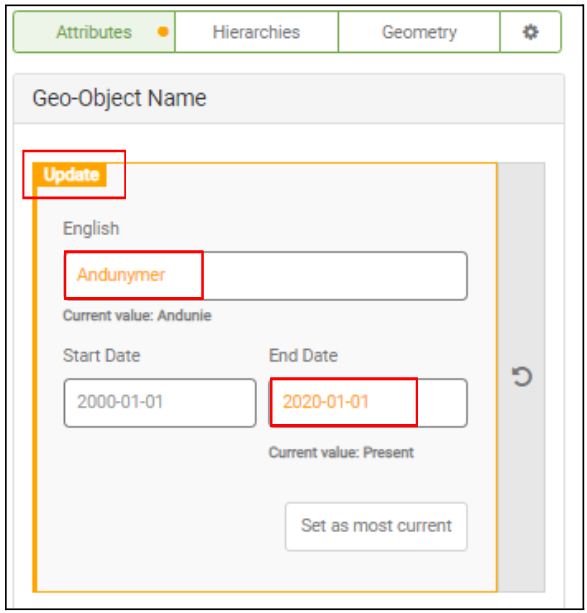
3. Make your changes. Each value has a start and end date, and you can click **New instance** to add a value for a new period. Changed tabs are marked with an orange dot, changed values turn orange, and each change is labelled:
* **Value Change:** only the value changed.
* **Time Change:** only the dates changed.
* **Update:** both the value and the dates changed.
4. To undo the changes in a tab, click the revert arrow.
5. On the **Geometry** tab, if geometry editing is enabled for the Geo-Object Type, click **Edit Geometry** to draw or change the shape on the map, and **Stop editing** when you're done. For points, you can type the **Latitude** and **Longitude**. **Show original** displays the geometry before your changes.
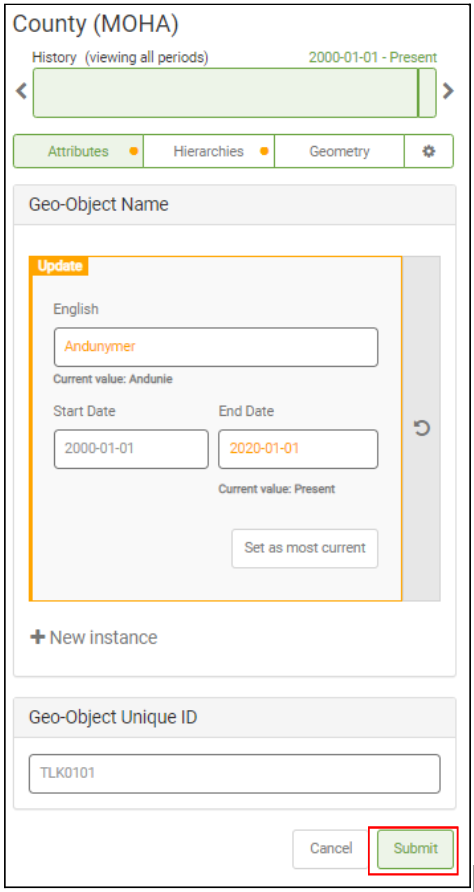
6. Click **Submit**. If you're a Registry Contributor, enter a **Reason** and click **Submit A Change Request** instead.
7. A message confirms the edit was submitted. For a change request, click **View change request** to see it, or **Ok**.
If you leave while editing, a message warns that your changes will be lost.