> For the complete documentation index, see [llms.txt](https://docs.geoprismregistry.com/llms.txt). Markdown versions of documentation pages are available by appending `.md` to page URLs; this page is available as [Markdown](https://docs.geoprismregistry.com/readme/current-1-1/deployment-and-setup/3.8-configuration-based-type-setup/3.8-configuration-based-type-setup.md).

# 3.8.1. Import type definitions

1. Go to the **Settings** module from the sidebar.\
   ![](https://3732932512-files.gitbook.io/~/files/v0/b/gitbook-x-prod.appspot.com/o/spaces%2F9giVyCrmTxAs33YrSRbJ%2Fuploads%2Fy3f0XRUiLPg6XnaciMSA%2Fimage.png?alt=media\&token=2b098de8-92ac-4afa-ad81-38f4f1ca350f)
2. Scroll to the bottom of the left sidebar.
3. Click on the **Import Types** button.\\

   <figure><img src="https://3732932512-files.gitbook.io/~/files/v0/b/gitbook-x-prod.appspot.com/o/spaces%2F9giVyCrmTxAs33YrSRbJ%2Fuploads%2FvPdvybjhjDkuQeUKVKUK%2Fimage.png?alt=media&amp;token=8a53a97b-5240-44e7-b480-d55ddfca4665" alt=""><figcaption></figcaption></figure>
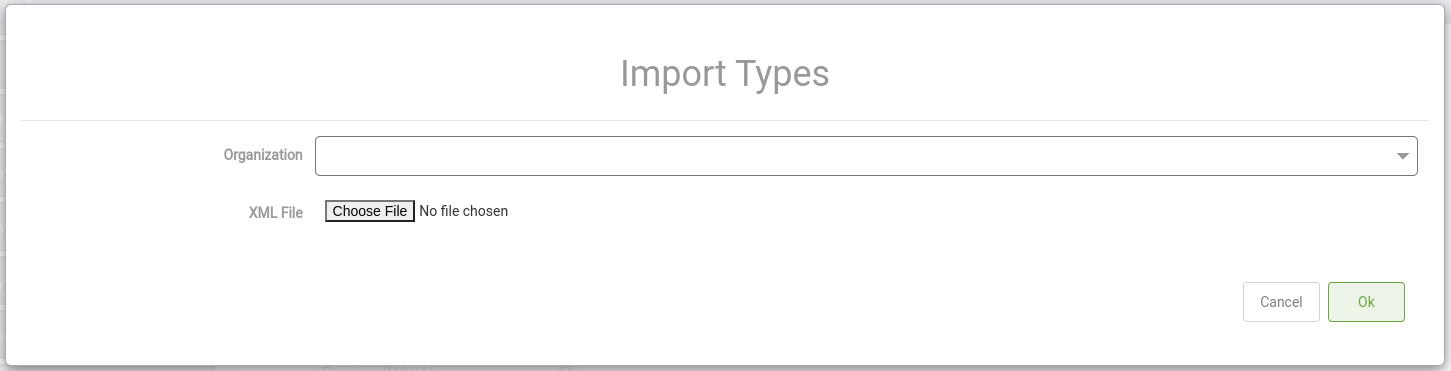
4. Select the organization the type will belong to and upload the type definition (see type definitions below) to be added to the system.\\

   <figure><img src="https://3732932512-files.gitbook.io/~/files/v0/b/gitbook-x-prod.appspot.com/o/spaces%2F9giVyCrmTxAs33YrSRbJ%2Fuploads%2Fw2r796EbxJKidU3lDORm%2Fimage.png?alt=media&amp;token=ec6c5fa3-88c9-4bf4-beb9-e49a83359f5e" alt=""><figcaption></figcaption></figure>
5. Click **OK**.